
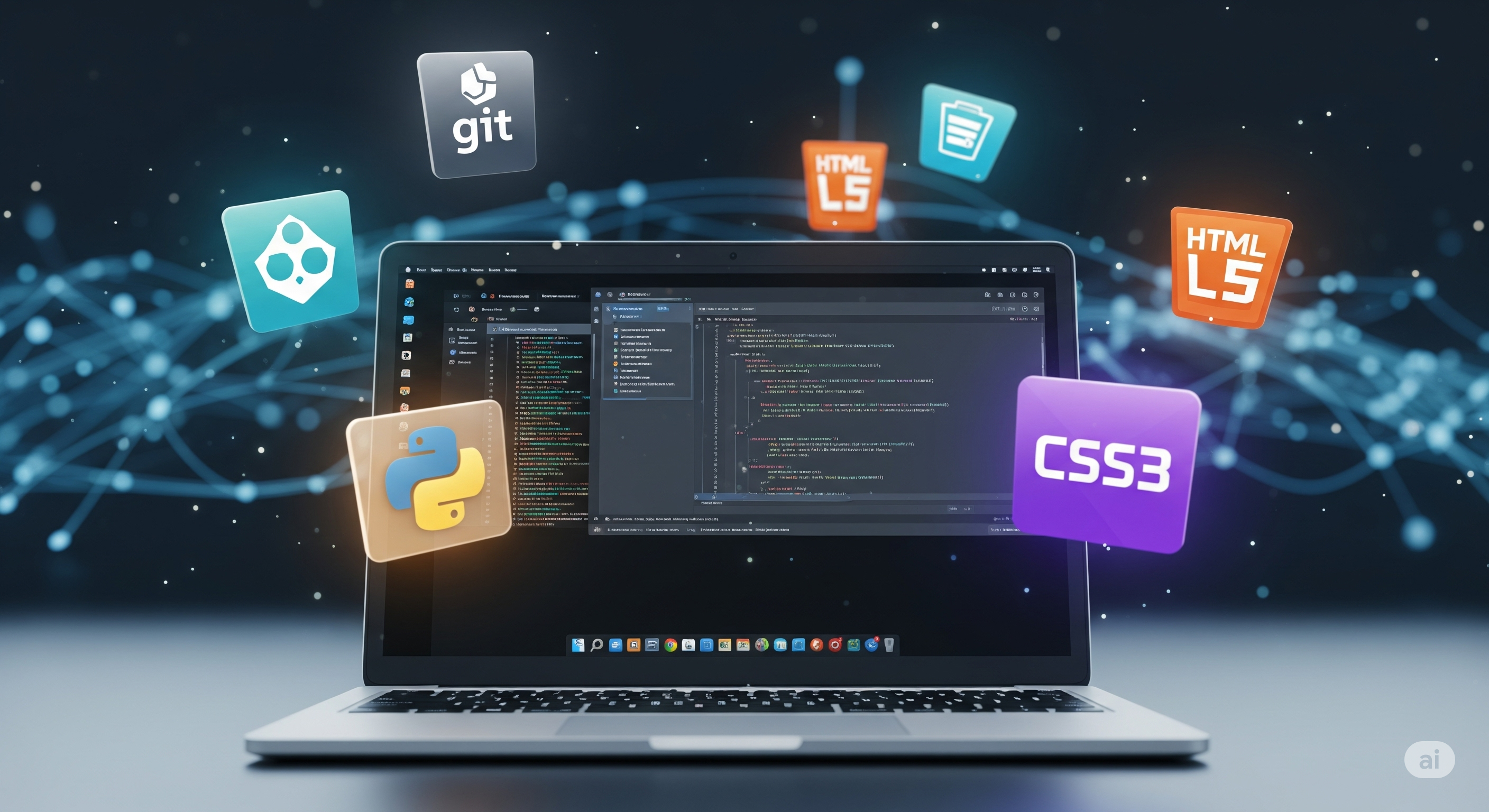
Moment 5: The World of the Web - HTML, CSS & JavaScript
Reading time: approx. 12 min
You now have a fully configured, professional development environment in VS Code. You can manage files, run commands and track changes with Git. It's time to apply these skills to one of the most common and creative areas of development: building for the web.
Almost everything we interact with on the internet is built with three fundamental technologies working together. In this moment we will demystify these three, HTML, CSS and JavaScript, and use our new development environment to build a simple, interactive website from scratch.
What You Will Learn
After this moment you will be able to:
- Explain the distinct roles that HTML, CSS and JavaScript have.
- Create a basic website with a standard HTML5 structure.
- Link an external CSS file to style your page and a JavaScript file to add functionality.
- Use the indispensable VS Code extension "Live Server" to immediately see your changes in the browser.
The Basics: The Three Building Blocks of the Web
A simple way to understand how the technologies work together is to think of a website as a house:
- HTML (HyperText Markup Language): This is the house's frame and structure. HTML defines all parts and their purpose: here is a roof (
<header>), here is a room (<div>), here is a window (<img>), and here is the text on the wall (<p>). - CSS (Cascading Style Sheets): This is the house's color, shape and decoration. CSS determines how everything looks: the walls should be blue (
color: blue;), the text should have a certain font (font-family: ...;) and the rooms should lie next to each other (display: flex;). - JavaScript: This is the house's electricity, plumbing and function. JavaScript makes the house alive and interactive. When you press a button (
<button>) a lamp lights up (an animation starts), or when you open the door a melody plays (data is fetched from another place).
Practical Examples: Build Your First Website
Now we build a minimal "house".
1. Prepare the project Create a new folder for the project and open it in VS Code.
mkdir my-website
cd my-website
code .
2. Create the files In VS Code's file explorer (the leftmost view), create three new files:
index.htmlstyle.cssscript.js
3. Create the HTML skeleton (index.html) Type an exclamation mark ! in the empty index.html file and then press Tab. VS Code will automatically generate a basic HTML5 structure for you!
Then make two changes: link to your CSS and JS files and add some content in <body>. Your file should look like this:
<!DOCTYPE html>
<html lang="en">
<head>
  <meta charset="UTF-8">
  <meta name="viewport" content="width=device-width, initial-scale=1.0">
  <title>My First Website</title>
  <link rel="stylesheet" href="style.css">
</head>
<body>
  <h1>Hello World!</h1>
  <p>This is my very first website, created in Ubuntu.</p>

  <script src="script.js"></script>
</body>
</html>
4. Style with CSS (style.css) Add some simple CSS to give the page some color and shape.
body {
  background-color: #2c3e50;
  color: #ecf0f1;
  font-family: sans-serif;
  text-align: center;
  padding-top: 50px;
}

h1 {
  color: #3498db;
}
5. Add interactivity with JavaScript (script.js) We add a simple function that shows a message when you click on the heading.
const heading = document.querySelector('h1');

heading.addEventListener('click', function() {
  alert('You clicked on the heading!');
});
See the Magic Happen: Live Server in VS Code
Constantly saving and manually refreshing the browser is inefficient. We use an extension to solve this.
- Install: Go to the Extensions view in VS Code and search for Live Server. Install it.
- Run: Once installed, right-click on your
index.htmlfile in the file explorer and select Open with Live Server. - A new browser window opens with your page.
- Test: Go back to VS Code. Change the text in your
<h1>tag and save the file (Ctrl + S). Switch to the browser. It has updated automatically! This works for all three files.
Exercise: Make the Page Your Own
Now it's your turn to experiment.
- Change the text in
index.htmlso it's about you. - Add a button (
<button id="my-button">Click here</button>) under the paragraph inindex.html. - In
style.css, add style rules for your button. Give it e.g. a background color, white text and somepadding. - In
script.js, add code that listens for clicks on your new button and changes the text in the paragraph<p>. - Use Live Server to see all your changes directly.
Next Steps
Awesome work! You have built your first interactive website from scratch. You have now seen how to set up environments for both Python and web development. But how do you ensure that an application works the same on your computer as on your student's, or on a server in the cloud?
In the final moment, Isolated Environments with Docker, we introduce "containers", a revolutionary way to package and run applications.